Invite new users
You can invite users to join your organization by sending out email invitations, or creating reusable invitation links to share.
In LaboChat, the operator configures how many active people a Free organization can have, including the owner. Bots and supervisors do not use these places. Pending email invitations reserve places, and the limit is checked again when someone joins, including through an existing invitation link. You can still invite a supervisor when Free is full. The organization changes to Pro when the supervisor accepts, or when an administrator adds the supervisor with a valid code.
Prior to inviting users to your organization, it is recommended that administrators:
- Configure default settings for new users.
- Configure a custom welcome message for new users.
- Configure the organization language for automated messages and invitation emails for your organization.
When you invite users, you can:
- Set the role that they will have when they join.
- Configure which channels they will be subscribed to. The organization’s default channels will be preselected.
- Configure which groups they will be added to.
- Customize the welcome message.
Organization administrators can configure who is allowed to invite users to the organization. You will only see an Invite users menu option if you have permission to invite users.
Send email invitations
Section titled “Send email invitations”- Click on the gear () icon in the upper right corner of the web or desktop app.
- Select Invite users.
- Enter a list of email addresses.
- Toggle Send me a direct message when my invitation is accepted, to receive a notification when an invitation is accepted.
- Select when the invitations will expire.
- Select what role the users will join as.
- Configure which channels they will be subscribed to.
- Configure which groups they will be added to.
- (optional; administrators only) Customize the welcome message.
- Click Invite.
Invite a LaboChat supervisor
Section titled “Invite a LaboChat supervisor”Organization administrators can invite an existing supervisor in the same invitation dialog’s Supervisors tab. Enter the existing supervisor’s email address and click Invite. This tab only sends supervisor invitations. Use the Email invitation tab to invite ordinary members. The supervisor receives an email and accepts or declines in their panel. Access to the organization’s data starts after acceptance.
Alternatively, the supervisor can click New next to the code on their panel’s Organizations page, then Copy. In the Supervisors tab, enter the code and click Add supervisor. This adds the supervisor immediately. Codes are valid for 24 hours and one organization; generating a new code invalidates the previous one.
Example email invitation
Section titled “Example email invitation”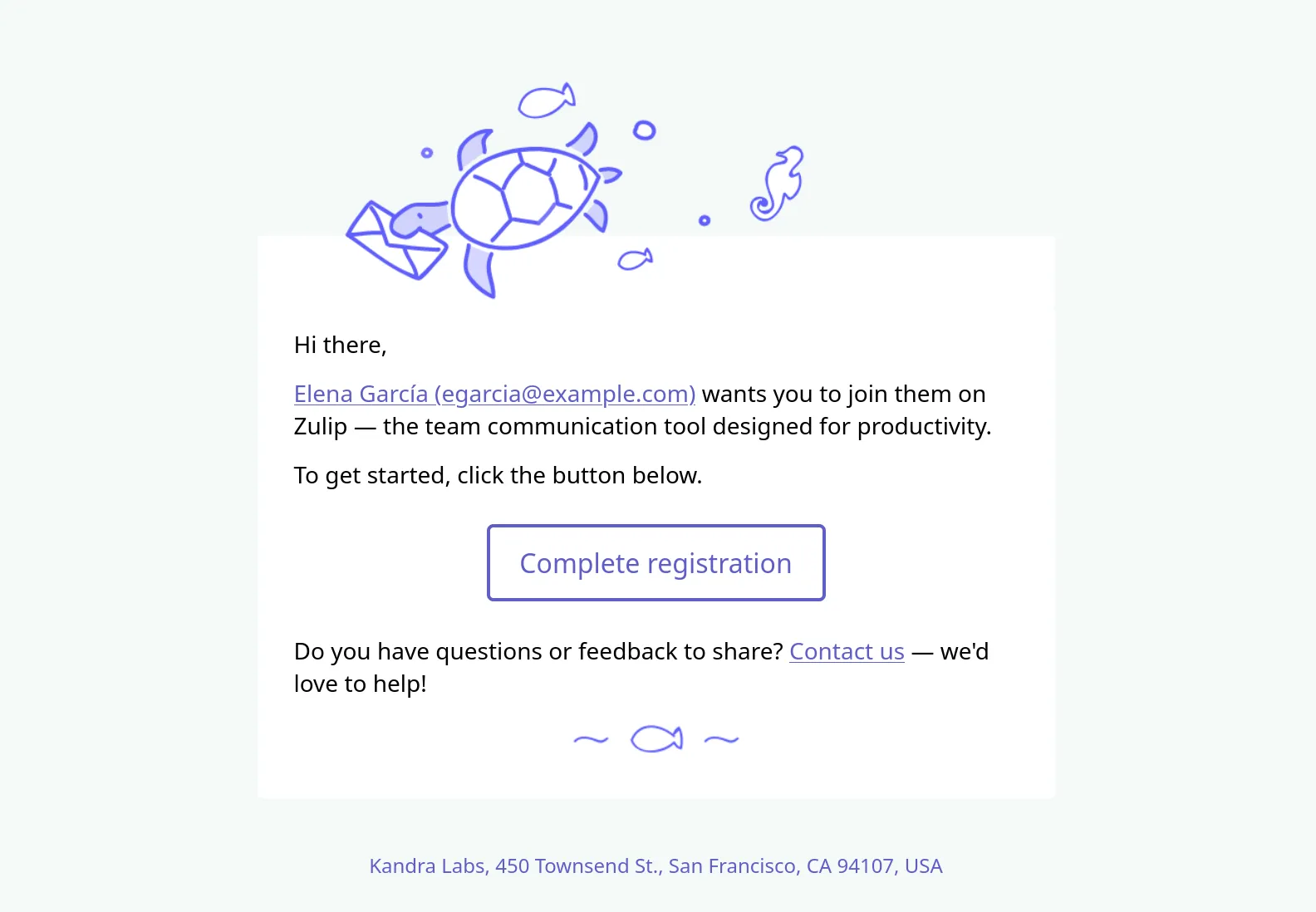
Create a reusable invitation link
Section titled “Create a reusable invitation link”- Click on the gear () icon in the upper right corner of the web or desktop app.
- Select Invite users.
- Select Invitation link.
- Select when the invitation will expire.
- Select what role the users will join as.
- Configure which channels they will be subscribed to.
- Configure which groups they will be added to.
- (optional; administrators only) Customize the welcome message.
- Click Create link.
- Copy the link, and send it to anyone you’d like to invite.
Manage pending invitations
Section titled “Manage pending invitations”Organization owners can revoke or resend any invitation or reusable invitation link. Organization administrators can do the same except for invitations for the organization owners role.
Revoke an invitation
Section titled “Revoke an invitation”- Navigate to the Users tab of the Organization settings menu.
- Select the Invitations tab.
- Find the invitation you want to revoke.
- Click the revoke () icon next to the invitation.
Resend an invitation
Section titled “Resend an invitation”- Navigate to the Users tab of the Organization settings menu.
- Select the Invitations tab.
- Find the invitation you want to resend.
- Click the resend () icon next to the invitation.